


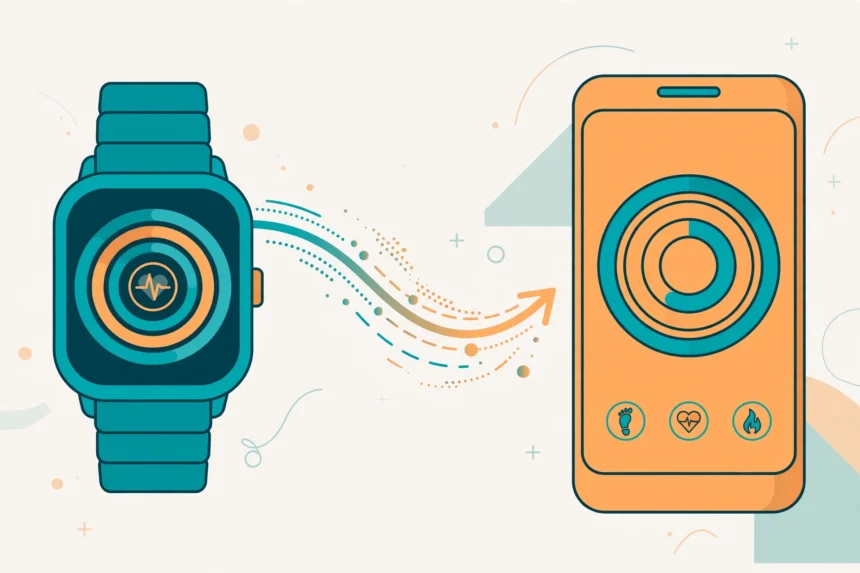
You can sync Garmin steps to Apple Health for free using the built-in Garmin Connect integration — no paid app required. Open Garmin Connect, go to More → Settings → Connected Apps → Apple Health, tap Connect, and allow step sharing. Your steps will appear in the Apple Health app after each watch sync.
If that surprises you, you’re not alone. Most of the guides ranking for this question were written years ago, back when Garmin offered no native Apple Health support and everyone funnelled readers toward paid third-party apps. That advice is outdated. Here’s what actually works in 2026, ranked from simplest to most involved, plus fixes for every common failure.
Key Takeaways
- The free native method works: Garmin Connect → More → Settings → Connected Apps → Apple Health → Connect. No third-party app needed.
- Sync is one-way only: Garmin sends data to Apple Health; Apple Health cannot send data back to Garmin Connect.
- Steps sync after each watch sync, not in real time — and only while the Garmin Connect app is open or refreshing in the background.
- Strava, RunGap, and HealthFit are legitimate workarounds for special cases (workout detail, reverse sync, duplicate fixes).
- Most “steps not showing” problems are fixed by setting Garmin Connect as the top data source in Apple Health.
The Old Advice Is Outdated — Here’s What Changed
For years, the standard answer to “how do I sync Garmin steps to Apple Health” was a shrug and a link to a paid bridge app. Garmin Connect Mobile version 2.6 added official Apple Health sharing, and every current version since has kept it. If a guide tells you Garmin can’t sync to Apple Health at all, check its date — it’s describing a world that no longer exists.
That doesn’t mean the integration is perfect. It’s one-way, it’s not instant, and it skips some data types. But for the core job — getting your daily step count from your Garmin watch into the Apple Health app on your iPhone — the native method is free, official, and the most reliable option. Start there.
Method 1: The Native Garmin Connect Integration (Free, Recommended)
This is the method to use in 2026. It costs nothing, it’s built by Garmin, and it handles steps plus most other health data automatically.
Before you start: make sure your Garmin watch is paired with the Garmin Connect app on your iPhone and has synced recently. You’ll need the iOS version of Garmin Connect — this integration doesn’t exist on Android (Android users get Health Connect instead).
- Open the Garmin Connect app on your iPhone.
- Tap More (bottom-right corner).
- Go to Settings → Connected Apps.
- Select Apple Health.
- Tap Connect. iOS will show the HealthKit permission screen.
- Toggle on every category you want to share — at minimum Steps. Most people also enable Workouts, Heart Rate, and Sleep.
- Tap Allow (top-right) to confirm.
That’s it. From now on, after each watch sync, Garmin Connect pushes your new data into Apple Health. Open the Apple Health app, tap Browse → Activity → Steps, and your Garmin step count should appear — usually within a few minutes of syncing your watch.
Two things worth knowing upfront. First, the sync is not real-time: steps arrive in batches after your watch syncs, so don’t expect the Apple Health number to tick up with every stride. Second, only new data syncs from the moment you connect — Garmin won’t backfill months of old step history into Apple Health.
Method 2: The Strava Bridge (Free, Good If You Already Use Strava)
If you run or cycle with Strava, you can route data through it: Garmin Connect syncs to Strava automatically, and Strava can write workouts and activity data into Apple Health.
- In Garmin Connect, go to More → Settings → Connected Apps → Strava → Connect, and authorise.
- In the Strava app, go to Settings → Applications, Services and Devices → connect Apple Health and allow write permissions.
- Record activities as normal; they’ll flow Garmin → Strava → Apple Health.
The catch: this route is best for workouts, not your all-day step count. Strava writes activities, not continuous step data. Use it as a complement to Method 1, not a replacement — for example, if you want richer workout detail in Apple Health alongside your native step sync. Watch out for duplicates: if both Garmin Connect and Strava are writing workouts to Apple Health, you can get double entries (see Troubleshooting).
Method 3: RunGap or HealthFit (Paid Apps, For Special Cases)
RunGap (rungap.com, iOS) has long been the enthusiast’s choice for moving workout data between platforms. It imports Garmin workouts into Apple Health accurately, and users on Garmin’s own forums recommend it specifically when the native sync mangles calorie data. Note its limitation: it’s workout-focused — step syncing has only ever been experimental, so don’t buy it just for steps.
HealthFit (paid, iOS) goes further: it can export activities as .fit files and, via its iCloud Drive folder, even help move data in the reverse direction (Apple Health/Apple Watch → Garmin Connect) — the one thing Garmin’s native integration can’t do.
Buy one of these only if you have a specific problem the free methods don’t solve: duplicate-ridden workouts, a need for .fit file exports, or syncing Apple Watch data back into Garmin Connect. For plain step syncing, they’re overkill.
What Syncs — and What Doesn’t
Not everything on your Garmin makes the trip. Here’s the honest breakdown:
| Data type | Syncs to Apple Health? |
|---|---|
| Steps | Yes |
| Distance | Yes |
| Flights climbed | Yes |
| Active and resting energy (calories) | Yes |
| Heart rate | Yes |
| Sleep analysis | Yes |
| Workouts (runs, rides, swims) | Yes |
| Weight and body fat (from Garmin scale) | Yes |
| GPS routes and maps | No |
| HRV, VO2 max, training load | No |
| Detailed lap/split data | No |
Also note: Garmin-written data won’t close your Activity rings — rings only respond to an Apple Watch. And if you wear both a Garmin and an Apple Watch, Apple Health may show conflicting step counts until you set a priority order (see below).
Troubleshooting: When Garmin Steps Won’t Show in Apple Health
Work through this list in order. It resolves the large majority of sync failures.
1. Set Garmin Connect as the top data source
This is the number-one fix, straight from Garmin’s own support pages. Apple Health merges step data from every source (your iPhone, your watch, apps) and displays the highest-priority source first. If your iPhone is ranked above Garmin Connect, you’ll see the phone’s count instead of your watch’s.
- Open Apple Health → Browse → Activity → Steps.
- Scroll down and tap Data Sources & Access.
- Tap Edit (top-right).
- Drag Garmin Connect (listed as “Connect”) to the top of the list.
- Tap Done.
2. Check that Garmin Connect is actually allowed to write steps
Permissions get revoked by iOS updates, app reinstalls, and overzealous privacy cleanups. In Apple Health, go to your profile picture → Apps → Garmin Connect and confirm Steps is toggled on. While you’re there, check the other categories you care about.
3. Open the Garmin Connect app and sync your watch
Data only transfers while Garmin Connect is open or refreshing in the background. If you’ve force-quit the app, transfers pause until you reopen it. Open the app, pull down to sync your watch, wait a couple of minutes, then check Apple Health. Also confirm Background App Refresh is enabled for Garmin Connect in iPhone Settings → General.
4. Kill the duplicates
Seeing double step counts or double workouts? That’s two apps writing the same data — typically Garmin Connect plus Strava, or Garmin Connect plus RunGap. Decide which app should own each data type, then in Apple Health → profile → Apps, turn off write permission for the loser on the overlapping categories. Garmin forum users specifically recommend disabling Garmin’s Workout and Active Energy write access when using RunGap, since RunGap skips workouts that already exist at the same timestamp.
5. Re-authorise the connection
If nothing else works, break and remake the link: in Garmin Connect, go to More → Settings → Connected Apps → Apple Health and disconnect, then reconnect and re-grant permissions. This clears stale authorisation tokens, which are a common silent failure after app updates. Your previously synced data stays in Apple Health.
6. Restart and update
The unglamorous classics: restart your iPhone, and make sure both Garmin Connect and iOS are on their latest versions. Garmin has fixed several HealthKit bugs in app updates over the years.
Frequently Asked Questions
Does Garmin sync to Apple Health automatically?
Yes, once connected. After the one-time setup in Garmin Connect → Connected Apps → Apple Health, new steps, workouts, and health data transfer automatically after each watch sync. It isn’t instant — expect a short delay — and the Garmin Connect app needs to be open or refreshing in the background.
Why are my Garmin steps not showing in Apple Health?
The most common cause is data source priority. Your iPhone also counts steps, and Apple Health may be displaying the phone’s count instead of your watch’s. Fix it in Apple Health → Browse → Activity → Steps → Data Sources & Access → Edit, and drag Garmin Connect to the top. Also verify Steps permission is enabled under your profile → Apps → Garmin Connect.
Can Apple Health send data back to Garmin Connect?
No — the integration is one-way only. Data flows from Garmin Connect into Apple Health, never the reverse. If you need Apple Watch workouts inside Garmin Connect, the HealthFit app can bridge that gap via exported .fit files.
Do I need a third-party app to sync Garmin steps to Apple Health?
No. The native Garmin Connect integration is free and handles steps. Third-party apps like RunGap or HealthFit are only worth it for special cases: fixing duplicate workouts, exporting .fit files, or syncing in the reverse direction.
Will my Garmin workouts close my Apple Activity rings?
Only if you own an Apple Watch. Garmin data written to Apple Health appears in the Health app, but the Activity rings respond exclusively to Apple Watch data. Without an Apple Watch, your rings stay empty regardless of sync.
Does syncing drain my iPhone battery?
Barely. The sync piggybacks on your watch’s normal Bluetooth syncs. If you’re sensitive to battery drain, share only the categories you actually use — each additional data type adds a small amount of transfer work.
Will my old Garmin step history transfer to Apple Health?
No. The integration syncs new data from the moment you connect it. Historical step counts stay in Garmin Connect only.
Conclusion
To sync Garmin steps to Apple Health, use the free native integration: Garmin Connect → More → Settings → Connected Apps → Apple Health → Connect, allow Steps, and keep the app syncing. It covers steps and most health data with no paid app required. Reserve Strava, RunGap, or HealthFit for edge cases, and when steps go missing, check your data source priority first — that single setting fixes most failures.
Want more plain-English tech explainers? Subscribe to WriteWhiz — new guides every week.