



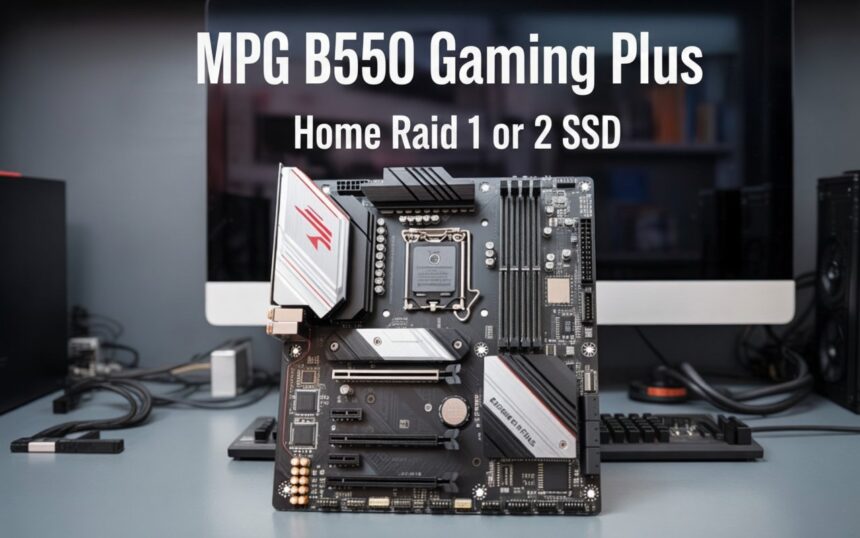
Introduction to RAID on the MPG B550 Gaming Plus
The MSI MPG B550 Gaming Plus motherboard gives home users a practical way to set up a RAID configuration using SSDs. Many gaming and productivity users choose this board because it supports multiple storage options, fast PCIe lanes, and BIOS-level RAID functionality. If you want additional data protection or faster storage performance, RAID can be a strong addition to your setup.
Before deciding between RAID 1 or using two SSDs separately, it helps to understand how the motherboard handles SATA and NVMe drives. The B550 chipset supports RAID through the AMD RAID utility, which you configure in the BIOS. This allows you to combine compatible drives into a protected or performance-oriented configuration. Understanding these basics will help you choose the RAID approach that fits your home system.
Understanding RAID Options: What Home Users Should Know
RAID is often misunderstood, especially among first-time builders. While it can improve data safety or system responsiveness, not every setup benefits from it equally. The right RAID level depends entirely on what you want: protection from drive failure, improved speed, or a simple way to organize files.
On the MPG B550 Gaming Plus, RAID options apply to both SATA and NVMe SSDs (with certain lane-sharing limitations). Because RAID uses two or more drives, you should plan your storage layout in advance. This ensures you avoid conflicts between your M.2 SSD and SATA ports, especially if your GPU fills the main PCIe slot.
How SSD Support Works on the MSI MPG B550 Gaming Plus
This motherboard includes two M.2 slots and six SATA ports, giving you flexibility when assembling your storage array. However, lane-sharing rules apply. For example, enabling certain M.2 slots may disable a SATA port depending on how the drives interact with the chipset. These details matter when building a RAID array since RAID requires consistent drive detection.
Home users often mix SATA SSDs and NVMe SSDs without realizing that they cannot be placed in the same RAID array. The board supports RAID for SATA drives and RAID for NVMe drives, but each group operates separately. This means you should match your drives carefully if you plan to build RAID 1 or RAID 0.
RAID 1 vs. Using Two SSDs: What Makes More Sense?
Choosing between RAID 1 and using two SSDs individually depends on whether you value data protection or storage flexibility. RAID 1 mirrors your data between two drives, meaning each file exists in duplicate. This protects your files if one SSD fails. However, it doesn’t increase space or speed. It’s a safety-focused choice.
On the other hand, using two SSDs separately gives you full control over how you store games, applications, and personal files. It also means each drive operates independently, offering the full speed of each SSD. While this option lacks protection against drive failure, it offers better flexibility and full capacity.
When RAID 1 Makes Sense for a Home PC
RAID 1 is ideal if your priority is keeping personal files safe without relying solely on cloud storage. Many home users store photos, documents, client files, and large work projects locally. RAID 1 ensures that these files remain accessible even if one SSD suddenly stops working.
Another reason RAID 1 works well on the MPG B550 Gaming Plus is its stable RAID support through AMD’s storage controller. Once configured, the system treats the mirrored drives like a single volume, making storage management simple. If you’re building a multipurpose PC that handles gaming and work tasks, RAID 1 adds an extra layer of peace of mind.
When Two Separate SSDs Are the Better Choice
Separate SSDs are often a better fit for gaming systems where performance and capacity matter more than redundancy. Many players prefer keeping their operating system on one SSD and storing games on another for clearer organization. This approach makes troubleshooting easier and avoids the overhead associated with RAID mirroring.
Two independent SSDs also allow you to mix different drive sizes and speeds. For example, you can reserve a faster NVMe drive for the OS and applications while keeping a more affordable SATA SSD for large files or less demanding games. This setup balances cost and performance without limiting you to identical hardware.
Hardware Requirements for RAID on the MPG B550 Gaming Plus
If you choose RAID, your SSDs must match in key characteristics. Mismatched drives can cause poor performance, insufficient capacity, or RAID configuration failures. The motherboard performs best when paired with identical drives that run at the same speed and capacity.
Below is a quick comparison of what you need for a solid RAID setup:
RAID Hardware Requirements (Column Format)
| Requirement | Details |
| Drive Matching | Identical SSDs are recommended for RAID 1 or RAID 0. |
| Supported Types | RAID works separately for SATA or NVMe — no mixing. |
| BIOS Settings | AMD RAID must be enabled before OS installation. |
| Operating System Support | Windows 10/11 supports AMD RAID drivers. |
| Backup Software | Still recommended since RAID ≠ full backup. |
These requirements help ensure your RAID array performs reliably and maintains stability during high workloads.
BIOS Setup Basics for RAID Configuration
The RAID setup process on the MPG B550 Gaming Plus begins in the BIOS. First, you enable RAID mode under the SATA or NVMe configuration menu. After turning it on, the BIOS displays an option to create a RAID array using AMD’s on-board RAID management. This tool lets you choose the RAID level and select which drives to include.
You’ll also need to install your operating system using the correct RAID drivers. MSI provides these drivers through its support page. When installing Windows, you load the RAID driver so the OS can identify your RAID volume as a single drive. This step is essential for a successful installation.
Performance Impact: RAID 1 vs. No RAID
RAID 1 provides redundancy but does not increase read or write performance. In fact, write operations may be slightly slower because data must be written to two drives at once. For general home use, this trade-off is usually minimal and hardly noticeable during everyday tasks.
In contrast, using two SSDs independently allows each drive to operate at full potential. This is beneficial for users who run large applications, edit media files, or play demanding games. If performance is your main concern and redundancy isn’t critical, separate SSDs deliver the best results.
How RAID Affects Longevity and Wear on SSDs
RAID configurations change the way drives handle data, which can influence their lifespan. In RAID 1, both SSDs receive identical write operations. This means each drive experiences equal wear over time. While modern SSDs have excellent durability, it’s still important to monitor drive health regularly. Tools such as MSI Center or third-party S.M.A.R.T. utilities help track temperature, write cycles, and potential drive errors.
Using two SSDs independently distributes wear more naturally. Each drive handles its own workload depending on how you use it. If your operating system is on one SSD and your game library is on another, the wear balances itself through your daily tasks. This setup can be slightly more efficient for drive longevity, especially in a mixed-use home PC.
Common Mistakes Users Make When Setting Up RAID
Many first-time builders run into avoidable issues when attempting to create a RAID array on the MPG B550 Gaming Plus. One common mistake is mixing drive types — such as pairing an NVMe SSD with a SATA SSD — and expecting the BIOS to treat them as a single RAID group. The chipset separates SATA RAID and NVMe RAID, so drive matching is essential.
Another frequent issue is enabling RAID after Windows is already installed. Because RAID changes the storage controller mode, Windows may fail to boot if RAID is activated afterward. The correct process is to enable RAID first, then install the OS using the AMD RAID driver. Following the right order prevents unnecessary troubleshooting later.
RAID for Home Workstations: Is It Worth It?
For home offices or small workloads, RAID 1 can add meaningful protection with minimal complexity. Users who handle financial files, design projects, coding environments, or family archives benefit from the automatic mirroring RAID provides. It creates a buffer against unexpected hardware failure without requiring daily backups.
However, RAID is not a replacement for an actual backup plan. If a virus, accidental deletion, or file corruption occurs, RAID cannot recover previous versions of your data. For this reason, many home users pair RAID with external storage or cloud backup services. This combination ensures both redundancy and recoverability.
Gaming Performance: RAID vs. Dual SSDs
From a gaming perspective, RAID 1 does not provide noticeable speed improvements. Games load from a single mirrored volume, and write performance may even be slightly slower. Most gamers prefer independent SSDs because each drive can deliver maximum speed without the overhead of mirroring.
A common setup for gamers using the MPG B550 Gaming Plus includes:
Popular Gaming Storage Layout (Column Format)
| SSD 1 | SSD 2 |
| NVMe drive for Windows + key applications | NVMe or SATA drive for game libraries |
| Fast boot and quick program load times | Greater storage capacity for large titles |
This layout keeps the system responsive while leaving room for future expansions.
Troubleshooting RAID Issues on the MPG B550 Gaming Plus
If your RAID array isn’t detected during setup, it’s often because the BIOS configuration is incomplete. Double-check that RAID mode is enabled under the correct storage section — SATA RAID for SATA SSDs or NVMe RAID for M.2 drives. Confirm that both drives appear in the RAID utility before creating the array.
Another issue involves missing RAID drivers during Windows installation. If the installer cannot detect your RAID volume, use a USB drive to load the AMD RAID driver from MSI’s support page. Once the driver is recognized, the installer will show the RAID volume as a single available drive.
Best Practices for a Stable RAID Setup at Home
To keep your RAID configuration stable, treat it with the same care as your operating system. Keep your BIOS updated, especially if MSI releases RAID-related fixes or compatibility improvements. Regular updates help ensure smooth communication between the chipset, RAID controller, and SSDs.
It’s also wise to test your RAID volume after creation. You can run a consistency check through the AMD RAID utility or monitor performance with benchmarking tools. These steps confirm that your drives are synced correctly and working without errors. For long-term reliability, schedule periodic health checks so you can take action before a drive reaches failure status.
Conclusion: Choosing the Right Storage Setup for the MPG B550 Gaming Plus
The MPG B550 Gaming Plus offers strong flexibility for users deciding between RAID 1 and two independent SSDs. RAID 1 provides straightforward redundancy that protects against drive failure, making it useful for home offices, creative projects, and general file safety. It delivers dependable stability, especially when paired with identical SSDs and properly configured BIOS settings.
On the other hand, independent SSDs offer maximum performance, storage freedom, and easier upgrades. Gamers, content creators, and power users often prefer this option because it allows each drive to operate at full speed. It also supports mixed drive types and capacities, making it more adaptable for long-term use.
In the end, the right choice depends on your priorities. If you value data protection and peace of mind, RAID 1 is a solid match. If you care about speed and flexibility, two individual SSDs will serve you better. Either way, the MPG B550 Gaming Plus gives you the tools to build a storage setup that fits your needs without unnecessary complexity.